Free Audacity Alternatives Online
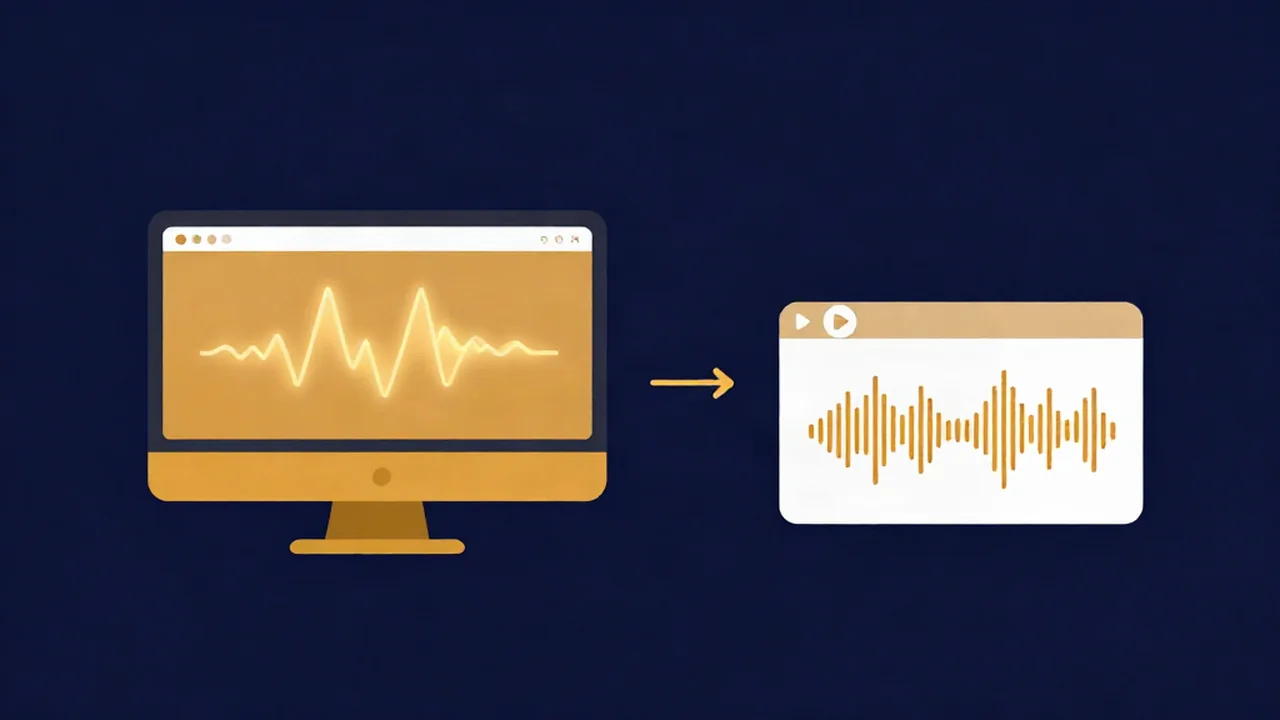
If you want a free Audacity alternative online for a quick job — trimming a clip, evening out volume, stripping noise — a browser tool like the Audio Cutter does it in a tab with nothing to install. The real decision usually isn't "which is better" but "I need Audacity's job done and I don't want to download, install, and learn a full editor for one file." This guide maps the common Audacity tasks to browser tools, and stays honest about the jobs where Audacity is still the right call.
Audacity is a genuinely great, free, open-source desktop editor. Nothing here is a knock on it. But a desktop install isn't always the fastest path — especially on a locked-down work laptop, a Chromebook, or a phone.
Why look for a browser-based alternative?
A few practical reasons to reach for a browser tool instead of installing an editor:
- No download, no install. You open a page and work. There's nothing to update and nothing to uninstall later.
- Works on any device with a browser. Windows, Mac, Linux, Chromebook, tablet, phone. Audacity is desktop-only, so a Chromebook or an iPad rules it out.
- Your audio never leaves your device. Vocal Cut's tools run fully in your browser — the file you drop in is processed locally and is never uploaded to a server. (To be precise: the audio stays put. Some tools do fetch code to run — the AI models and the ffmpeg engine download to your browser the first time you use them — but your file is never sent anywhere.)
- No account. No sign-up, no email, no login wall before you can trim thirty seconds off a track.
If you're weighing the general trade-off, browser-based vs. desktop audio tools covers it in depth, and do you really need a DAW is worth reading if you're not sure a full editor is warranted at all.
At a glance
| Audacity | Vocal Cut (browser tools) | |
|---|---|---|
| Install | Desktop app to download and install | None — runs in a browser tab |
| Platform | Windows, macOS, Linux | Any device with a modern browser |
| Multitrack | Yes — unlimited tracks | No — single-purpose, one file at a time |
| Plugins | VST3, Nyquist, LV2, LADSPA | None (built-in tools only) |
| Your audio | Stays on your machine (offline) | Never leaves your device (processed locally) |
| Cost | Free, open-source | Free, no account |
| Best for | Deep multitrack projects, plugin chains, restoration | Quick one-off jobs on any device |
Both are free. The split is scope: Audacity is a full editor you install; the browser tools are single-purpose utilities you open for one task.
Cutting or trimming a clip
The single most common Audacity job — top and tail a recording, chop out a section, grab a thirty-second sample — needs none of Audacity's depth. The Audio Cutter is a browser audio trimmer built for exactly this: drop in a file, set your in and out points, and export. For MP3s specifically it works as an mp3 cutter that trims the section you keep without a lossy re-encode, so the audio you keep stays untouched.
For the reasoning behind that — why some tools re-encode and some don't, and how to avoid quality loss when you cut audio — see how to cut audio without losing quality.
Normalizing volume
Audacity has Normalize and Loudness Normalization effects. If you just need a file brought to a consistent level, the Volume Normalizer does that in the browser: normalize audio to a LUFS target for a platform like Spotify or YouTube, or set a simple peak ceiling. It's the same job with less setup — no effect menu, no chain to configure.
If the terms are unfamiliar, how to normalize audio volume explains LUFS, peak, and which target to pick.
Removing background noise
This is the one to be honest about. The Noise Reducer removes background noise with an AI model for voice, or spectral processing to strip hiss and mains hum from music — no noise profile to capture first, and it handles most everyday cleanup (room hum, hiss, steady background noise) well. It's not instant: the voice model downloads to your browser on first use and then runs on your device, which takes real time depending on clip length and your CPU.
Where Audacity still wins is surgical restoration. Its spectrogram view lets you see and manually paint out specific problems — a single cough, a click, a resonant frequency — with a precision a one-click tool doesn't offer. For a quick pass, the browser tool is faster; for careful, frame-by-frame repair, Audacity is the better instrument. If you want to understand what the AI is actually doing, how AI noise reduction works walks through it.
Converting file formats
People install Audacity just to convert one file, which is overkill. The Audio Converter converts audio formats in the browser — MP3, WAV, FLAC, OGG, M4A, AAC, Opus — with no file-size cap imposed by a server and no account. MP3, WAV, and Opus use built-in encoders; the others use the ffmpeg engine, which downloads to your browser once and is then cached for next time.
Not sure which format to pick? How to convert audio formats covers the lossless-vs-lossy choice and what each format is good for.
Recording a take
Audacity records multitrack, but if you just need to capture a voice memo, a scratch vocal, or a quick take, the Audio Recorder records audio in your browser straight from your microphone — with pause, resume, and a live level meter — then saves as WebM, WAV, or MP3. No install, and the recording stays on your device.
See how to record audio in your browser for mic setup and getting a clean level.
Jobs where a browser tool is actually the easier choice
A couple of tasks are genuinely harder in Audacity than in a purpose-built browser tool:
- Trimming dead air. Audacity's Truncate Silence works, but the Silence Remover shows every detected gap before it cuts and lets you tune the threshold and gap length in one screen.
- Isolating vocals or splitting stems. Audacity has no built-in AI stem separation. The Vocal Remover splits a song into vocal and instrumental, and the Stem Splitter breaks it into four stems — vocals, drums, bass, and other. Both run an AI model that downloads to your browser and processes on your device. If you've only ever done phase-inversion tricks in an editor, how AI vocal removal works explains why a model gets far cleaner results.
What Audacity still does better
To keep this fair, here's where a browser tab is not a substitute:
- Multitrack projects. Audacity handles unlimited tracks with per-track editing, fades, and mixing. Browser tools work on one file at a time — they're not a place to build a podcast episode from ten clips or mix a song.
- Plugins. VST3, Nyquist, LV2, and LADSPA support means an entire ecosystem of effects and processors. The browser tools give you their built-in function and nothing more.
- Surgical restoration. The spectrogram editor for hand-removing specific artifacts has no browser equivalent.
- Offline forever. Once installed, Audacity needs no network at all. Browser tools need the page to load, and some fetch their engine on first use.
A browser tab is a set of sharp single-purpose tools. It is not a full DAW, and it's not trying to be one.
Which should you use?
Pick based on the job, not on a winner:
- Use Audacity when you're building something with multiple tracks, running plugin chains, doing careful spectral restoration, or you want one installed app that works offline forever. For a real project, it's the better tool.
- Use a browser tool when you have one quick job on a single file, you're on a device where you can't or won't install software, you'd rather not create an account, or the file is sensitive and you want it processed locally without uploading it anywhere.
For most people the honest answer is both: Audacity for the occasional deep project, a browser tab for the far more frequent "I just need to trim/normalize/convert this one file" moments.
Frequently asked questions
Is there a free Audacity alternative that works in a browser?
Yes. Vocal Cut is a set of free browser-based tools that cover the most common Audacity jobs — cutting, normalizing, noise removal, format conversion, and recording — with nothing to install and no account. They're single-purpose utilities rather than a full editor, which makes them faster for one-off tasks but not a replacement for a multitrack project.
Do these browser tools upload my audio?
No. Vocal Cut's tools process your file locally in your browser, and your audio never leaves your device. Some tools do download code to run — the AI models and the ffmpeg conversion engine are fetched to your browser the first time you use them — but the audio file itself is never sent to a server.
Can a browser tool replace Audacity completely?
Not for everything. For quick single-file jobs — trim, normalize, convert, denoise, record — a browser tool is often faster and needs no install. But for multitrack editing, VST and other plugins, and surgical spectrogram restoration, Audacity is still the better choice. Many people use both.
Is Audacity still free in 2026?
Yes. Audacity remains free and open-source, and runs on Windows, macOS, and Linux.
Can these browser tools do things Audacity can't?
A few, yes. Audacity has no built-in AI stem separation, so isolating vocals or splitting a song into drums, bass, and other stems is easier with the Vocal Remover or Stem Splitter. AI-based noise removal without capturing a noise profile is also more convenient in the browser, though Audacity's manual spectral editing is more precise.
Which is more private, Audacity or a browser tool?
Both keep your audio off third-party servers. Audacity runs entirely offline on your machine. Vocal Cut runs in your browser and never uploads your audio — the file is processed on your device. Neither requires an account, so both are strong privacy choices; the difference is install-versus-tab, not one leaking your files.