How to Convert Audio Between Formats
Converting audio just means changing the container and codec a sound is stored in — MP3 to WAV, WAV to FLAC, an oddball M4A into something your editor accepts. It's one of the most common audio tasks there is, and also one where a small wrong turn quietly costs you quality. Here's how to do it right.
The quick version
- Open the audio converter and drop your file in.
- Pick the output format (MP3, WAV, FLAC, and more).
- Convert and download. It runs in your browser — nothing is uploaded.
Simple. The part worth thinking about is which format, and when a conversion is safe.
Lossless vs. lossy — the one distinction that matters
Every format falls into one of two camps, and knowing which is which prevents the most common mistake:
- Lossless (WAV, FLAC) keeps every bit of the original audio. Converting between two lossless formats is safe and repeatable — WAV to FLAC and back is bit-for-bit identical.
- Lossy (MP3, AAC, OGG, Opus) permanently throws away data to shrink the file. It sounds fine for listening, but the discarded detail is gone for good.
The golden rule: converting to lossy loses quality; converting from lossy never gets it back. Turning an MP3 into a WAV makes a bigger file but doesn't restore what the MP3 already discarded — you just get a lossless copy of a lossy source. For the full stage-by-stage breakdown, see the best file formats for audio editing.
The mistake to avoid: lossy → lossy
The quality-killer is converting one lossy format into another — MP3 to AAC, or MP3 back to a lower-bitrate MP3. Each lossy encode discards data based on its own model, and stacking two of them compounds artifacts you can't hear coming. If you must end at a lossy format, convert from a lossless master whenever possible, not from another compressed file.
Sometimes a lossy file is all you have — an OGG that a player or app won't open, say. Converting it once is fine: run it through OGG to MP3 at a generous bitrate, then leave the result alone rather than re-encoding it again.
Which format should you pick?
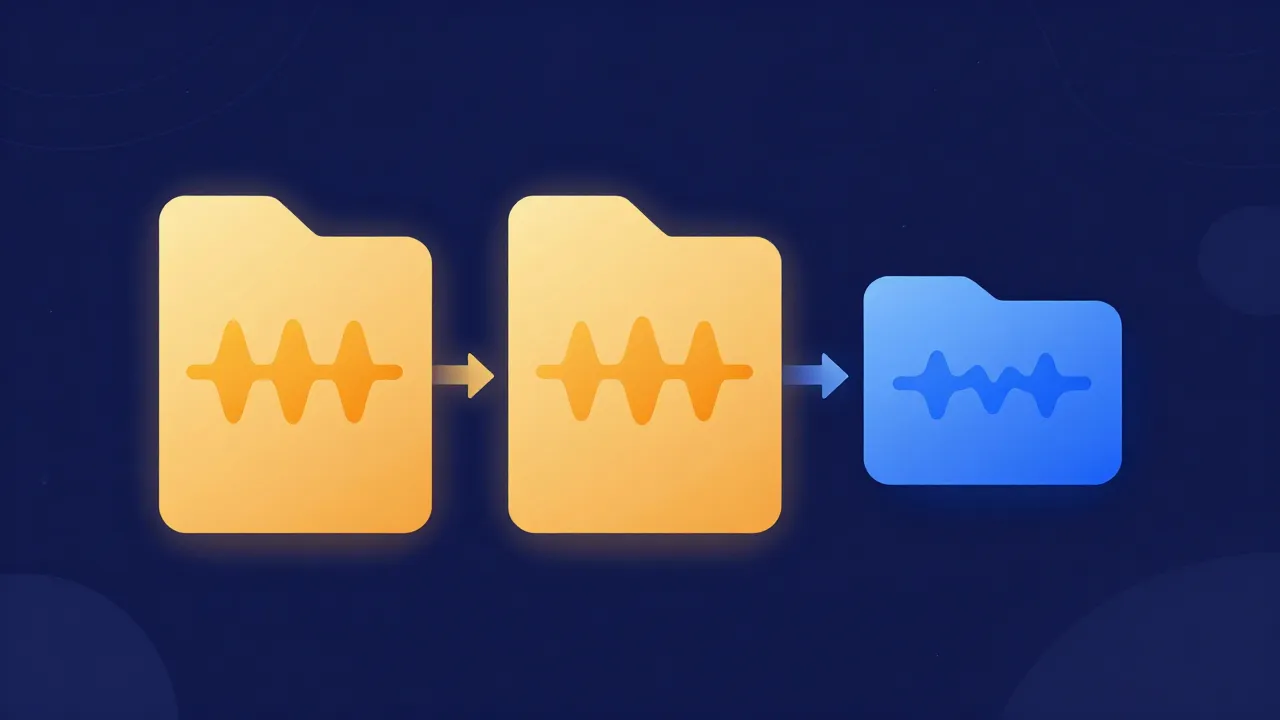
- MP3 — universal compatibility, small size. The safe default for sharing.
- WAV — lossless, no decoding quirks. Best for handing to an editor or DAW.
- FLAC — lossless but compressed. Great for archiving without giant files. For a copy your phone or car will play, FLAC to MP3 makes one from that lossless source.
- AAC / Opus — better quality per kilobit than MP3; good for streaming and modern apps. If an older player won't take an AAC file, AAC to MP3 makes a compatible copy.
If your real goal is a smaller file rather than a different format, that's a different job — see how to compress audio files, which trades size against bitrate deliberately. And if a conversion involves different sample rates, the tool resamples automatically; the sample rate guide explains what that means.
Frequently asked questions
Does converting MP3 to WAV improve quality? No. It creates a lossless copy, but it can't restore detail the MP3 already discarded. The WAV just won't lose anything further.
What's the best format to convert to? MP3 for sharing, WAV or FLAC for editing and archiving. Match the destination, and keep a lossless master if you'll edit again.
Is converting audio lossless? Only if both formats are lossless (e.g. WAV ↔ FLAC). Converting to any lossy format discards data permanently.
Are my files uploaded to convert them? No — the audio converter processes everything in your browser.