Audio Tools for Music Producers
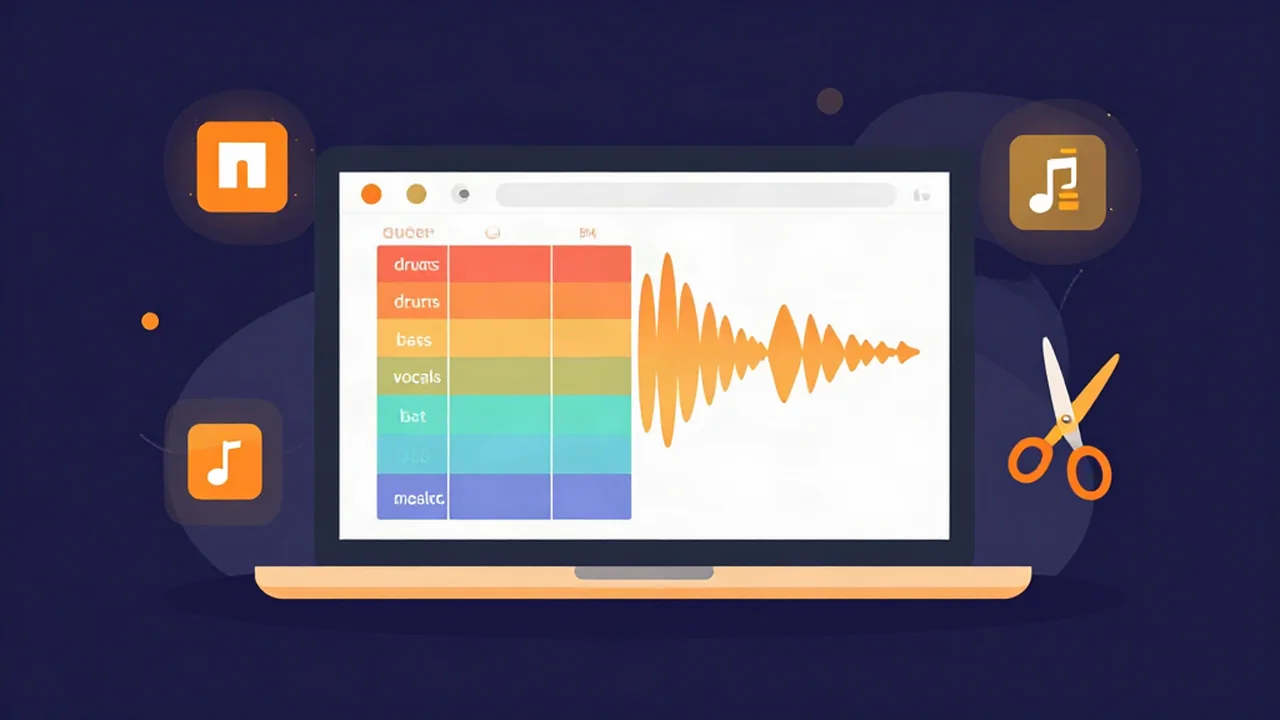
The free audio tools for music producers you actually reach for mid-session are the small, fast ones — pull a sample out of a track, check its tempo and key, chop it, and glue the mix together. Vocal Cut runs all of them free in your browser, with the flagship Stem Splitter doing the heavy lifting. There's no account, nothing to install, and because every tool is 100% client-side, your audio never leaves your device.
This is a producer's-eye tour of that kit — organized the way a session actually flows, not tool by tool in a list. Each one links to the page where you can use it.
Why browser tools earn a place in a producer's kit
Your DAW is home base. But a lot of production is small side quests — isolate a break, confirm a loop's BPM, trim a one-shot — and firing up a plugin chain for those is overkill. Browser tools fill that gap: they're free, need no account, and run the same on a Windows laptop, a Mac, or a borrowed machine at a friend's studio. Nothing to license, nothing to update.
The privacy point is worth being precise about, because it's often oversold. When a tool is client-side, your audio is never uploaded — it's processed by code running in your own browser tab. What does download is the machinery: the AI separation model, the audio engine, and so on come to your browser the first time you need them, then cache. So "your audio never leaves your device" is exactly true; "nothing ever downloads" is not. If you want the fuller picture of where browser tools fit against installed software, we cover the trade-offs in browser-based vs desktop audio tools.
Pull stems and samples out of finished tracks
This is the one that changes how you sample. The Stem Splitter takes a finished track and separates it into drums, bass, vocals, and other — so you can lift a clean drum break with no bass bleeding into it, or grab an isolated vocal to flip. If you only want the two-sided split — vocals out front, everything else behind — the Vocal Remover gives you an acapella and an instrumental from the same file.
Both run on an AI model (HTDemucs) executing on your own CPU. That means it's free, local, and private — but it is not instant. The first time you use it, the model downloads to your browser (a one-time fetch, then cached), and separating a full song takes a real minute or two of processing, not a snap. That's the honest trade for keeping your audio on your machine instead of shipping it to a server.
Separation is never surgically perfect — busy mixes leave faint artifacts, and a stem is a best-effort reconstruction, not the original multitrack. It's plenty for sampling, reference beds, and remix stems, and it's genuinely remarkable for something running in a browser tab. If the concept is new to you, what are audio stems explains the idea, and how to split a song into stems walks the actual process.
Find the tempo and key before you build
Nothing kills momentum like layering a loop that's fighting the track's tempo or clashing with its key. Two quick checks head that off. The BPM Finder reads the tempo of any sample or track so your loops line up before you commit to a grid, and the Key Finder detects the musical key so a melodic sample or vocal sits in tune with what you're building rather than a semitone off.
Run both on a candidate sample the moment you pull it in. Knowing a break is 94 BPM in F minor before you drop it next to your beat is the difference between a five-second decision and twenty minutes of nudging. For the theory behind lining tracks up — the tempo-and-key-matching side of DJ and remix work — beatmatching and key matching explained is the deeper read, and how to find the BPM of any song covers tempo detection in detail.
Chop, time-stretch and pitch samples to fit
Once a sample is in and you know its tempo and key, you shape it. The Audio Cutter is for slicing — pull a single bar loop out of a longer break, isolate a one-shot, top-and-tail a vocal phrase. Clean cuts, no re-encoding fuss.
When the tempo's wrong, the Speed Changer stretches or compresses a sample to a new tempo without dragging the pitch up or down with it — so a loop can hit your BPM without turning into chipmunk territory. And when the pitch is the problem, the Pitch Changer shifts a sample up or down to move it into your track's key. Between the two, most samples that "almost" work can be made to fit — chop it to length, stretch it to tempo, nudge it into key.
Shape tone and finish the track
Once the arrangement's down, two tools handle the polish. The Audio Compressor controls dynamics — reining in peaks and tightening the level so a part sits consistently instead of jumping around in the mix.
For the final glue and loudness, the mastering tool applies EQ, cohesion, and loudness targeting (measured in LUFS) so your bounce holds up next to commercial references and lands at a sensible level for streaming. Worth being clear on one thing: EQ lives inside the mastering tool — there is no separate standalone EQ page. If you go looking for an "equalizer" tool, the tonal shaping you want is in mastering. A full walkthrough is in how to master a song online free.
Convert and deliver
When the track's done, delivery sometimes has its own requirements — a collaborator wants WAV, a distributor wants a specific format, a sample pack needs everything as MP3. The Audio Converter moves a file you already have between WAV, MP3, FLAC, and more, so format never becomes the thing standing between you and a send.
This is file work on audio you already have on disk — a bounce, a stem, a sample you exported — not grabbing something from a link. Point it at your file, pick the target format, done.
A quick producer workflow, start to finish
Here's how the pieces connect on a real sample flip. You've got an old soul track you want to build a beat around. First, run it through the Stem Splitter and keep the isolated drums and the "other" (keys, guitar), dropping the original bass and vocal. Check the result in the BPM Finder and Key Finder: say it's 88 BPM in D minor. Your beat's at 92, so you run the keys stem through the Speed Changer to nudge it to 92 without changing pitch, then use the Audio Cutter to slice out the two-bar phrase you actually want. Layer it under your drums, and when the arrangement's finished, run the mastering tool for loudness and glue before you bounce. That's a full flip using only free browser tools. The remix angle on the same idea is in how to make a remix from a song, and if you're newer to the whole edit-to-export path, from raw recording to finished edit lays out the beginner's version.
The short version
You don't need a paid suite to sample, match, chop, and finish a track. The free browser tools above cover the working parts of a producer's day, they cost nothing, they need no account, and your audio stays on your device the whole time. If you only try one, make it the Stem Splitter — pulling a clean stem out of a finished track is the move that opens up everything downstream.
Frequently asked questions
Are these audio tools really free?
Yes — every tool on Vocal Cut is free to use with no trial, no paywall, and no credit card. The site is ad-supported and runs entirely in your browser, so there's no subscription behind any feature. Stem separation, BPM and key detection, cutting, pitch and speed changes, compression, mastering, and format conversion are all available at no cost.
Can I use these browser tools without an account?
Yes. There's no sign-up, login, or account of any kind. You open the tool page, load your file, and start working immediately. Because everything runs client-side in your browser, there's nothing to register — no profile, no saved-projects server, and no email required just to trim a sample or check a tempo.
Is my audio uploaded anywhere?
No. All processing happens on your own device inside the browser tab, so your audio never leaves your machine — it's never sent to a server. The one thing that does download is the machinery: AI models and audio engines are fetched to your browser the first time you use a tool, then cached. Your actual files stay local.
Can AI stem separation replace real multitrack stems?
Not exactly. The Stem Splitter reconstructs drums, bass, vocals, and other from a finished mix using an AI model, which is excellent for sampling, remixing, and reference beds. But it's a best-effort estimate, not the original session files — busy mixes can leave faint artifacts. Treat it as a powerful sampling and remix source rather than a true replacement for real multitracks.
Do I need to install anything?
No installation, plugin, or download step is required from you. The tools run in any modern browser. Behind the scenes, heavier features like AI separation and format conversion fetch a model or engine to your browser on first use, which caches for next time — but you never install software, and there's nothing to update or license.