How to Split a Song Into Stems for Free
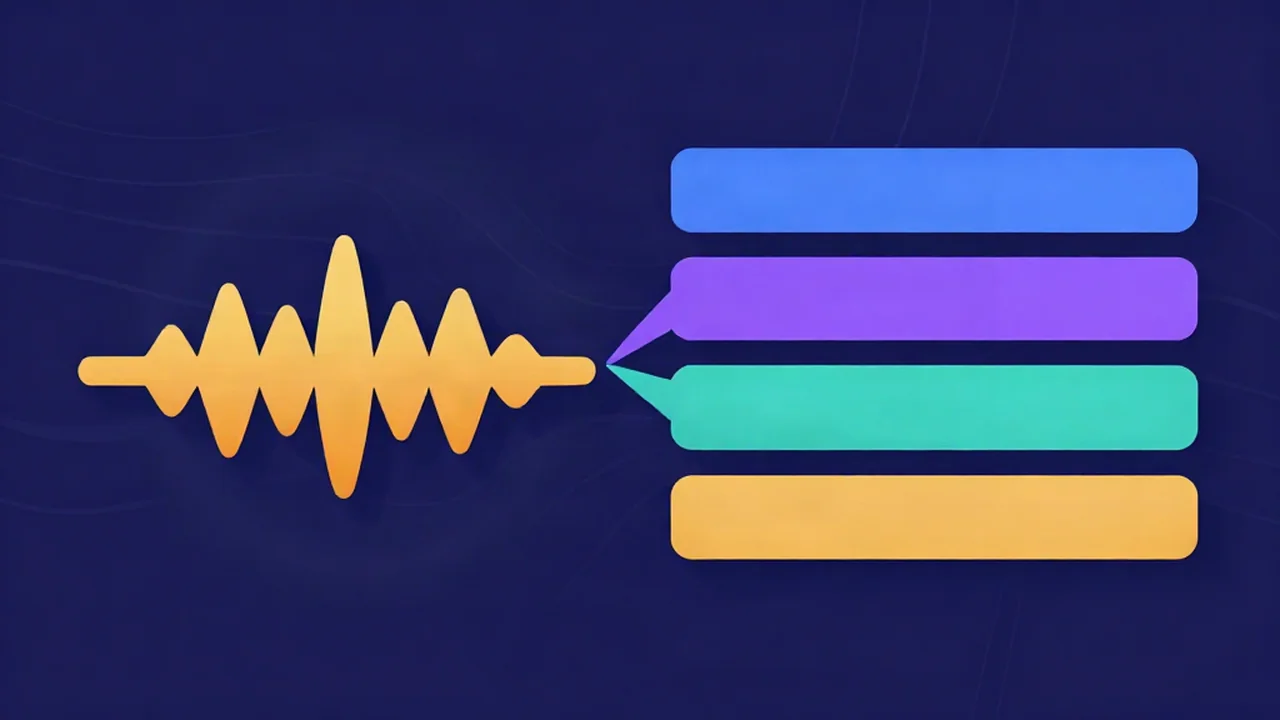
A stem is one isolated layer of a finished song — the vocals on their own, the drums on their own, and so on. Splitting a track into stems means taking a mixed-down file where everything is glued together and pulling it back apart into those separate parts. You can do it for free, right in your browser, with the free stem splitter: drop in a song and an AI model separates it into four stems — vocals, drums, bass, and everything else — that you can solo, mute, balance, and download individually. No software to install, no account, and your audio never leaves your device.
If the term is new to you, what are audio stems is a two-minute primer; the short version is that a stem sits between a single raw track and the full mix — it's a grouped part you can handle on its own.
What you'll need
- A song file in MP3, WAV, FLAC, or M4A.
- A track of any length your device can hold in memory. There's no fixed limit, but separation time grows with length, so trim a long piece to the part you need.
- Nothing else. No DAW, no plugins, no sign-up. It runs in the browser tab you already have open.
A stereo file works best. Mono recordings can still be separated, but the model has less spatial information to work from, so expect a rougher result.
Step by step
1. Open the stem splitter
Go to the stem splitter. It loads like any web page — there's no project to create and no settings to configure before you begin.
2. Drop in your song
Drag your file onto the drop area, or click to browse for it. The tool accepts MP3, WAV, FLAC, and M4A. Separation starts on its own the moment the file lands — you don't press a "go" button.
3. Wait for the four-stem separation
A Splitting stems panel appears with a live percentage and a short status line so you can see it working. Under the hood, an AI model (the same class of neural separation behind how AI vocal removal works) listens to the mix and reconstructs each part. The tool detects your hardware and shows whether it's running GPU-accelerated (WebGPU) or on CPU (WASM) — the GPU path is faster, but both produce the same four stems.
Two things are worth knowing up front:
- The first run downloads the model. The separator is a real neural network of tens of megabytes, fetched once from our CDN before it can do anything, then cached. This is the honest asterisk on "your audio never leaves your device": your audio stays local and is never uploaded, but the engine downloads to you the first time. Every separation after that needs no further download.
- It runs on your own hardware, not a server. That's what keeps it free and private — there's no cloud GPU to bill you. It also means this isn't instant: separation takes real time, and how long depends on your device and the length of the track. A current laptop is quick; an older phone is noticeably slower. Plug in if you're on battery.
4. Mix with the four stems
When it finishes you'll see 4 stems ready and a small mixer. At the top is a transport bar — a play/pause button and a seekable timeline — so you can audition the whole thing. Below it is one row per stem (Vocals, Drums, Bass, Other), each with:
- a Solo button (the headphones icon) that isolates just that stem so you can hear it alone;
- a Mute button that drops it out of the mix;
- a volume slider to balance it against the others; and
- a Save button to download it.
Muting and soloing are live — hit Solo on Vocals and everything else falls silent instantly, so you can check how clean the isolated part is before you commit to it. Solo more than one stem to hear just those together.
5. Save the stems you want
At the bottom is the export format selector: WAV (the default, lossless), MP3, or Opus. Pick one, then click Save on each stem you want — the file downloads in your chosen format, in full stereo, regardless of how you've set the mixer sliders. You don't have to keep all four; grab only the parts you need.
Four stems vs. just removing the vocals
The stem splitter and a plain vocal remover use the same kind of AI, but they answer different questions, and picking the right one saves you effort.
Reach for four stems when you want the parts separately. Remixing in a DAW, isolating a bassline to learn or transcribe it, pulling drums out to sample, or muting one instrument to practise against the rest — all of these need the individual layers, not one blended backing track.
A two-stem split is enough when you only care about "voice" versus "everything else." If the goal is a karaoke instrumental or a clean acapella, splitting into four parts and then re-combining three of them is more work than you need. Use the dedicated vocal remover instead — it produces exactly two stems, a vocal and an instrumental, and how to remove vocals from a song walks through it. Same technology, simpler output for that one job.
A useful rule of thumb: if your next step involves the word "drums" or "bass" specifically, you want four stems. If it's "with vocals" or "without vocals," two is plenty.
Getting the cleanest split
No AI separation is flawless, but a few habits reliably improve what you get back:
- Start from the best source you have. A lossless WAV or FLAC gives the model far more detail than a 128 kbps MP3 that discarded information years ago. Quality in, quality out.
- Expect dense mixes to bleed more. A sparse arrangement — voice, a couple of instruments, some drums — separates cleanly. A wall-of-sound production with stacked harmonies, heavy compression, and layered synths is a much harder ask, and you may hear faint traces of one part leaking into another.
- Treat "Other" as the catch-all. Vocals, drums, and bass are well-defined, so the model targets them confidently. Everything left — guitars, keys, synths, strings, brass — lands in the Other stem. It's doing the most work with the loosest definition, so it's usually the messiest of the four. If a guitar riff shows up faintly in Other rather than as its own clean track, that's expected: the model produces four stems, and Other is where all the non-drum, non-bass instruments share space.
AI stem separation is genuinely good on typical pop and rock and weaker on very dense, heavily processed, or mono material. It won't hand you the original multitrack session — it reconstructs an estimate of each part — but on most songs it's clean enough for real work.
What to do with your stems
Once you've saved the parts, plenty opens up:
- Remix or produce. Drop the stems into a DAW and rebuild the song — swap the drums, re-pitch the vocal, sit a new beat under the original bassline. If you're new to arranging, a beginner's audio editing workflow covers the path from raw parts to a finished edit.
- Build a karaoke bed. Mute the Vocals stem and export the rest as your instrumental. For a purpose-built version with an on-the-fly vocal guide and a key change to fit your range, the karaoke maker is made for it — make a karaoke track shows the whole flow.
- Practise a part. Guitarists, drummers, and bassists can mute their own instrument and play along with everything else.
- Sample cleanly. Isolating the drum stem gives you loops and one-shots without the melody bleeding over them.
Troubleshooting
I hear faint bleed between stems. On dense or heavily processed mixes, a little leakage between parts is normal — the model is estimating, not un-mixing a session file. Starting from a lossless source is the biggest lever you have; beyond that, some tracks simply separate more cleanly than others.
An instrument landed in "Other" instead of its own track. That's by design. There are exactly four stems — Vocals, Drums, Bass, and Other — and every instrument that isn't drums or bass shares the Other stem. There's no separate "guitar" or "piano" output.
The first split is taking a while / it's downloading something. The first run fetches the AI model once (tens of megabytes) before it can start, and separation then runs on your own CPU or GPU rather than a server. It's free and private for exactly that reason — but it isn't instant. Later splits skip the download, and a WebGPU-capable device is quicker than a CPU-only one.
My track is long and separation is slow. There is no fixed length cap, but separation time grows with length, and a very long file on a low-memory device can fail. Trim to the part you need, or split the song, separate each piece, then line the results back up.
Frequently asked questions
Is it free and private? Yes. The stem splitter runs the AI model in your browser using your own device's processing power, so there's no server cost and no upload — your audio physically never leaves your computer. There's no account and no sign-up. The one thing that does travel is the model itself, which downloads to you once from our CDN and then caches.
What formats does it accept and how long can the song be? You can drop in MP3, WAV, FLAC, or M4A files of any length your device can hold in memory. For output, each stem exports as lossless WAV by default, or as MP3 or Opus if you prefer a smaller file. Every stem downloads in full stereo.
How many stems do I get? Four: Vocals, Drums, Bass, and Other. Vocals, drums, and bass each get their own track; the Other stem is a catch-all for every remaining instrument — guitars, keys, synths, strings, and so on. There's no option for more separate parts than these four.
Why isn't the separation perfect? Because the AI reconstructs an estimate of each part rather than recovering the original multitrack. It's very good on typical pop and rock and weaker on dense, heavily processed, or mono mixes, where you may hear faint bleed between stems. Starting from a high-quality lossless source gives you the cleanest result.
Do I want this or the vocal remover? Use the stem splitter when you need the parts separately — remixing, isolating the bass or drums, or sampling. If you only want a vocal-free instrumental or a clean acapella, the vocal remover is simpler: it splits the song into just two stems, voice and instrumental, without the extra parts to recombine.
Does it work on my phone? Yes, though separation is processing-heavy, so it runs faster on a laptop or desktop than on an older phone. A device with WebGPU support will be quicker than one that falls back to CPU. Nothing is offloaded to a server, so speed tracks your own hardware.