Record a Voiceover With an Online Voice Recorder
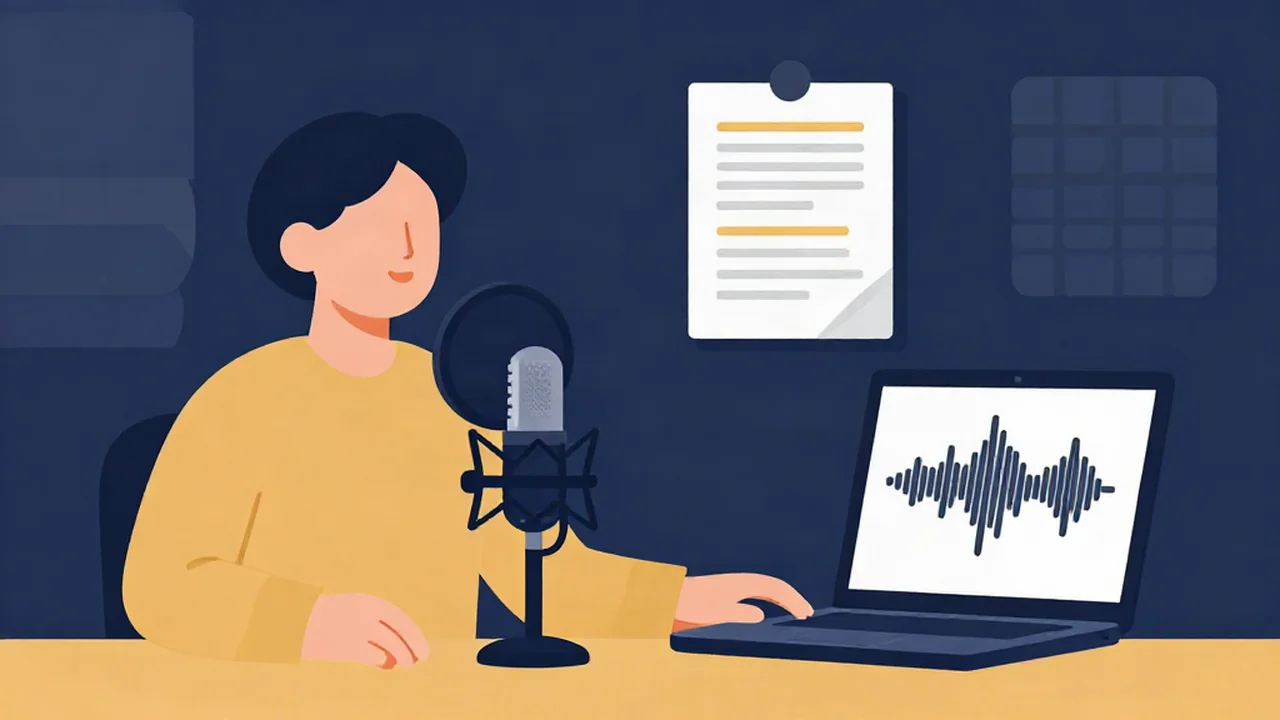
You can record a clean voiceover with the free online voice recorder on Vocal Cut and finish it in the same browser. The recording comes first: a quiet room, sensible levels and a marked-up script. After that it's a short cleanup chain. Noise reduction goes first, then you trim retakes and dead air, then you level the loudness. There's no account to make, and your audio never leaves your device.
This guide is for one voice reading a script: narration for a video, an explainer, an e-learning module or audiobook-style chapters. If you're producing a show with segments and guests, the podcast workflow is the better fit. For the general record-to-export pipeline across every tool, start with from raw recording to finished edit.
What you'll need
- A finished script, split into short numbered paragraphs
- A microphone. An external USB or headset mic beats a laptop's built-in one, though a laptop mic works if you get close
- A small, soft, quiet space and a glass of water
- A current browser on a secure (HTTPS) connection, which the recorder needs before it can use your mic
Prepare the script before you press record
Most voiceover editing time goes to fixing things a better script would have prevented.
Number every paragraph. Each paragraph becomes one take, and the number is how you'll find it later.
Mark the read. Add a slash where you want a short pause and a double slash for a longer one. Underline the words that carry the emphasis. Write numbers out the way you'll say them and add phonetic notes for names and product terms.
Read it aloud once, unrecorded. Sentences that look fine on paper often run out of breath halfway. Split those now, or mark a breath point.
Make the script silent. Paper rustles, and the mic hears it. Read from a screen or tablet, or lay loose pages flat so you never turn one mid-sentence.
Set up a quiet, dead-sounding space
Background noise is only half the problem. Echo is the other half, and it's harder to fix: a bare room with hard walls gives your voice a hollow sound no cleanup tool can fully take out.
- Go small and soft. A closet full of clothes is the classic home voiceover booth. Failing that, put blankets, cushions or a duvet behind and beside you. Sofas, rugs and curtains all help.
- Do the clap test. Clap once where you'll sit. If you hear a ring or flutter after the clap, add soft material until it goes dull.
- Kill the steady noise sources. Fans, fridges, heaters and notifications. Your phone goes on silent and out of reach.
- Use a solid chair that doesn't creak or roll. Small movements turn into thumps and squeaks on the recording, and a swivel chair keeps changing your distance from the mic.
Mic position matters as much as the room. The short version: start about a hand-span away, angle the mic slightly off your mouth to avoid pops (or use a pop filter), and keep that distance for the whole session. Mic placement for clean recordings explains why in detail and covers the laptop-mic case.
Warm up your voice
Narration exposes mouth noise in a way casual speech doesn't. Drink some water before you start and keep it in reach, because a dry mouth causes clicks. Hum, do a few lip trills, and read slightly slower than feels natural. Most people speed up once they're recording.
Record the voiceover in the audio recorder
The steps below follow the real controls on the Audio Recorder, a voice and audio recorder that runs in your browser tab.
- Enable the microphone. Click Enable microphone and allow access when your browser asks. The button shows "Requesting…" while it waits for you.
- Pick your input. Use the Input dropdown to choose your external mic, not the default built-in one. The device names only show up after you've granted permission.
- Check your level. Read a line at full voiceover energy and watch the level bar. It's an activity indicator with no numbers and no clip light, so treat it as a quick check that your mic is working. Aim for solid movement with plenty of space left above it. Most browsers also turn on automatic gain control by default, and it can pump the level up in your pauses. How to set recording levels covers both properly, including how to confirm a level with a test take.
- Record a 20-second test, then listen back. Press Record, read a paragraph, and press Stop. The take appears in the results area with a player. Listen with headphones for hiss, room ring and pops before you go further.
- Record your takes. Press Record for each paragraph. Use Pause and Resume to take a breather inside a long read, and Stop to finish the take.
- Download every take before you record the next one. The results area holds one recording at a time, and a new take replaces the previous one. Download each take as soon as it's done: the native file (labelled (as recorded)), WAV, or MP3 · 192 kbps. Then rename it with its paragraph number.
The native format depends on your browser. The recorder shows exactly which one it negotiated, typically WebM or OGG (Opus) or MP4 (AAC). If you're going on to edit, take the WAV download. It won't make the recording any better than it is, but it stops the file being compressed again at every later step.
Manage takes, slates and pickups
This is where a voiceover differs from a podcast. A podcast can stay loose. A scripted voiceover has to be clean, so plan the edit while you're recording.
Slate each take. At the start, say "Paragraph four, take two," then pause for a beat and clap once. The spoken slate tells you which take you're hearing, and the clap leaves a sharp spike you can spot in a waveform.
Don't stop for mistakes. If you fluff a line, pause for two seconds, then re-read from the start of that sentence. Don't restart from the middle of a word. Starting the whole take over costs more energy than it saves, and the pause makes the bad attempt easy to find and cut later.
Record pickups to match. A pickup is a short re-record of one line, done later. Your voice, distance and energy drift over a session, so a pickup recorded an hour later can sound like a different person. Play back the line just before the one you're fixing, match its pace and energy, then record. Do pickups at the end of the same session if you can, with the mic exactly where it was. If one still won't match, play back the surrounding lines and check the mic position before trying again.
Keep notes. One line per take is enough, something like "P4 T2 good, cough at end."
Clean it up: noise reduction, trims and leveling
Keep the cleanup light. Over-processed voiceover sounds worse than a slightly noisy one.
Reduce background noise
Open the noise reducer, drop in your take, choose Voice mode, and click Reduce noise (Voice mode). Voice mode runs an AI speech model (GTCRN) built for spoken word. The first time, it downloads the model (about 0.5 MB, one-time) and starts its engine before processing, so that run takes longer. It works on the speech band and outputs mono, which suits a single narrator.
When it finishes, compare Original and Denoised, then set the wet/dry mix. It starts at 75% processed, and blending some of the original back keeps the voice natural. It handles steady hiss, fan noise and room tone well. It can't remove a strong room echo, because the reflections are your own voice arriving a moment late.
Trim retakes with the audio cutter
The audio cutter keeps one section per pass, set with the Trim Start point and Trim End point controls. That suits voiceover well. For each good take, trim off the slate, the clap and any fluffed attempt, and keep only the clean read. If a single long recording holds several good passages, export each one as its own file. Put your cut points in natural pauses so they don't click.
Then stitch the keepers together in paragraph order with the audio joiner. It converts every file to the first file's sample rate and channel count, so put a take in the format you want first. A stereo pickup after a mono denoised take gets folded down to mono.
Remove only the long gaps
The silence remover is optional for narration, and it's easy to overdo. Its Threshold slider sets how quiet counts as silence, and Min gap length sets how long a gap has to be before it's cut. Each cut leaves only a sliver of the gap. Cut every pause and the read sounds rushed and breathless, because pauses are part of the pacing. Set Min gap length high so only the dead air between retakes goes, then check with Preview result before you export.
Level the loudness
Last, open the volume normalizer and use Loudness (LUFS) mode (what LUFS means, if the term is new). If the narration will play as it is, pick the preset that matches where it's going. The YouTube preset sets -14 LUFS, a widely used convention for video rather than a published YouTube spec. The Apple Music preset sets -16 LUFS, which also matches the -16 LUFS that Apple Podcasts asks for, so it suits spoken word. If the narration is going into a video editor under music, use the same target for every file so each chapter or module plays back at the same level. Leave Prevent clipping ticked, click Preview after-LUFS to check the result, and export.
Troubleshooting
The voice sounds hollow or distant. That's room echo, and processing won't remove it. Add soft material around you, move closer to the mic, and re-record.
There are clicks between words. If they're mouth clicks, drink water and re-record that line. If they're at edit points, move the cut into a pause.
For more step-by-step recording and cleanup walkthroughs, browse the audio how-to guides.
Frequently asked questions
Can I record a professional voiceover with a free online voice recorder? Yes, as long as the room and mic are right. A browser recorder captures what your microphone hears, so a quiet, soft-furnished space and a decent external mic matter far more than the software. Record each paragraph as its own take, download each one as WAV, then clean, trim and level it with free browser tools. Your audio never leaves your device.
What is a pickup in voiceover recording? A pickup is a short re-recording of a single line or sentence, used to replace a mistake or a weak read without redoing the whole take. The challenge is matching the original: same mic distance, same energy, same pace. Play back the line just before the fix and record pickups in the same session, with the mic set up exactly as it was, so the joins aren't audible.
Should I stop recording when I make a mistake? No. Pause for about two seconds, then re-read from the start of that sentence and keep going. Stopping and restarting breaks your rhythm and costs energy, while the pause leaves an easy-to-find gap for editing. Afterwards, trim the fluffed attempt out with an audio cutter. Clapping once or saying a short marker before the retake makes the spot even easier to find.
Can noise reduction fix echo in a voiceover? Not reliably. AI noise reduction is good at steady background sounds like hiss, fans and room tone, but echo is your own voice reflecting off hard surfaces, so it's mixed into the speech itself. Removing it convincingly is very hard after the fact. Treat echo before recording by using a small room or closet and hanging blankets or cushions around the mic.
What format should I save a voiceover in? Download each take as WAV for editing, since it's uncompressed and avoids extra quality loss at each step of cleanup. Export the finished, leveled narration in whatever your destination asks for: WAV for a video editor or an audiobook producer who wants a lossless master, or MP3 when you need a smaller file to share or upload.