How to Practice Singing With Backing Tracks
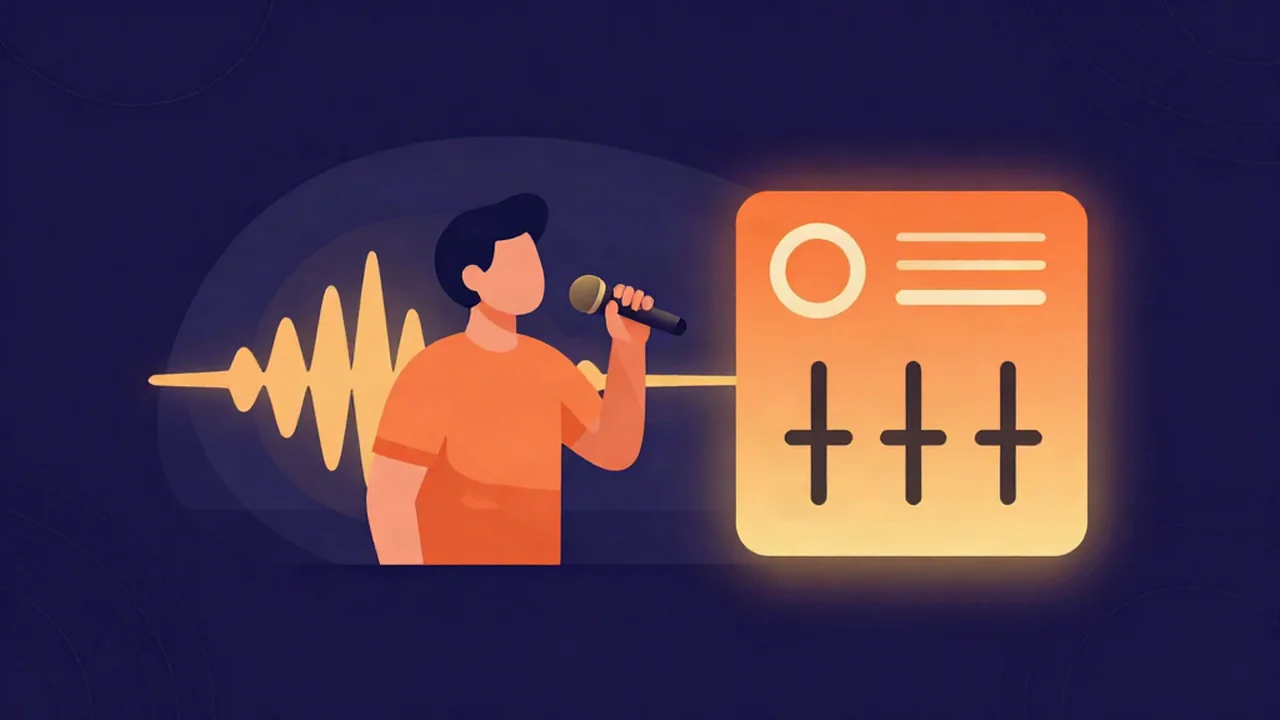
To practice singing with backing tracks, open the free Karaoke Maker, drop in a song you already own, and let it split the vocal from the instrumental so you can rehearse against the real recording. From there you can keep a quiet guide vocal to check your pitch and timing, remove the lead entirely for a full run, or shift the key so the song sits in your range. Everything runs locally in your browser — your audio never leaves your device, there's no account, and it's free.
What you'll need
- A song file you already have: MP3, WAV, FLAC, or M4A (OGG, AAC, and WebM also work).
- A modern browser. Key shifting uses AudioWorklet, which every current desktop and mobile browser supports.
- Headphones. Rehearsing over speakers lets the backing track bleed into your ear and pushes your pitch around — closed-back headphones keep the reference clean.
The first time you separate a song, the tool downloads a small AI model (tens of megabytes) from our CDN, then the separation runs on your own CPU or GPU. It's fast, local, and free, but it isn't instant — give it a moment to work, especially on a longer track.
Steps
- Open the Karaoke Maker and add your song. Drag a file onto the dropzone or click to browse. Nothing uploads; the file is processed right there in the page.
- Let the separation finish. On the first run the model downloads, then the tool splits your song into a vocal and an instrumental. You'll see progress while it works.
- Land on the Karaoke Mixer. Once separation is done you get three sliders: Guide vocal (0–100%, set to a quiet 25% by default), Instrumental (0–100%), and Key shift (−12 to +12 semitones).
- Set your guide level. Leave the guide vocal low to hear where the melody sits without it drowning you out, or drag it to 0% for a fully instrumental run once you know the song.
- Shift the key if you need to. Nudge Key shift up or down in semitones to move the song into your range. The tempo stays exactly the same — only the pitch of the whole track moves.
- Rehearse with the transport. Use play/pause, the seek bar, and the "back to start" button to run the song or jump around. When you nail a take, pick a format (WAV, MP3, or Opus) and hit Export karaoke to save your backing track for offline practice.
A simple practice routine
You don't need all three tools at once. Build up in stages so each pass has a job.
Pass one — check yourself against the guide vocal. Keep the guide vocal at its default 25%. It's loud enough to hear the phrasing and the exact moment each line lands, but quiet enough that your own voice leads. This is the best way to catch pitch drift and late entries early, because you have a reference singing the correct notes right beside you. This is a gentler on-ramp than trying to sing over an instrumental cold.
Pass two — do a full run with the vocal removed. Drag the guide vocal to 0% and sing the whole song against the instrumental alone. No safety net, real performance conditions. If you want a permanently vocal-free version for repeated use, the dedicated vocal remover produces the same instrumental as a clean file.
Pass three — drill the hard bits. If the song sits at the edge of your range, use Key shift to move it a few semitones into a comfortable spot and rehearse there before easing back toward the original key. For a passage that's fast or intricate, the mixer plays at full speed — so to slow it down and learn a song by ear, take the exported instrumental into the Speed Changer, which drops the tempo while the pitch stays put. Loop that section by ear a few times, then bring it back up to tempo.
Troubleshooting
I can still hear faint vocals in the instrumental. AI separation is very good but not perfect. Lead vocals that are hard-panned to the center, or drenched in reverb and delay, can leave a faint trace in the instrumental. Nudging the guide vocal to 0% removes the isolated vocal stem; the trace that remains is baked into the instrumental itself and can't be pulled out further here.
I want to loop a two-bar phrase over and over. The Karaoke Maker doesn't have a loop button or a built-in slow-down. To re-drill a section, use the seek bar to drop back to the start of the phrase, or hit "back to start," and replay it manually. To slow a tough passage down so you can learn it by ear, export the track and open it in the Speed Changer.
The key shift sounds a bit artificial. Small shifts (a semitone or two) are usually transparent. As you push toward the ±12 extremes, the pitch-shifting algorithm has to stretch the sound further and artifacts creep in. Stay within a few semitones of the original for the most natural result. If key changes are central to what you're doing, the Pitch Changer gives you the same control on a plain audio file, and the key-change guide walks through choosing the right amount.
Related
- How to Make a Karaoke Track — the full walkthrough for turning a song into a karaoke version.
- How to Sing Over an Instrumental — technique for performing against a backing track.
- How to Change a Karaoke Track's Key — pick the right semitone shift for your voice.
- Karaoke Tracks for Live Events and Parties — take your practice tracks to a real crowd.
Frequently asked questions
Do I need to be online to practice?
You need a connection the first time so the tool can download the AI separation model, and again if you want to process a new song. Once you've exported a backing track (WAV, MP3, or Opus), that file lives on your device and you can rehearse with it offline in any player. The separation itself always runs locally in your browser.
Can I keep a quiet guide vocal instead of removing it completely?
Yes, and it's the default. The Guide vocal slider sits at 25% when the mixer opens, giving you a soft reference to check pitch and timing against. Slide it up if you want more support, or down to 0% for a fully instrumental run. You can change it freely between takes without re-separating the song.
How do I slow down a hard section to learn it by ear?
The Karaoke Maker plays at full speed and has no tempo control, so export your track and open the Speed Changer. It reduces the tempo while keeping the pitch unchanged, which is exactly what you want for learning a fast phrase note by note. Slow it right down, get it under your fingers, then step the speed back up.
Does changing the key also change the tempo?
No. The Key shift slider moves only the pitch — the song plays back at its original tempo no matter how many semitones you shift it. That lets you move a song into your comfortable range without it speeding up or dragging, which is the whole point of a proper key change for practice.
What file types and lengths work?
You can drop in MP3, WAV, FLAC, and M4A files, plus OGG, AAC, and WebM. There is no fixed length limit, though a longer song takes longer to separate. There's no upload and no account — the file you choose is read and processed entirely inside your browser.